Slices are the building blocks of an Architect page. Think of them as reusable page components (text, images, tables, testimonials, CTAs) that the agent assembles into a full page based on your page context.

TextContainer

TextContainer slice showing a hero heading and body text with keyword highlighting
Best Used For: Rendering formatted text content with markdown support including headings, bold, italic, links, lists, and inline code. Supports keyword highlighting for interactive hover metadata. This is the foundational component for any text-heavy content. Text types include:
  • hero - Large heading for the start of a page
  • headline - Section heading for content breaks
  • body - Standard paragraph text

ImageContainer
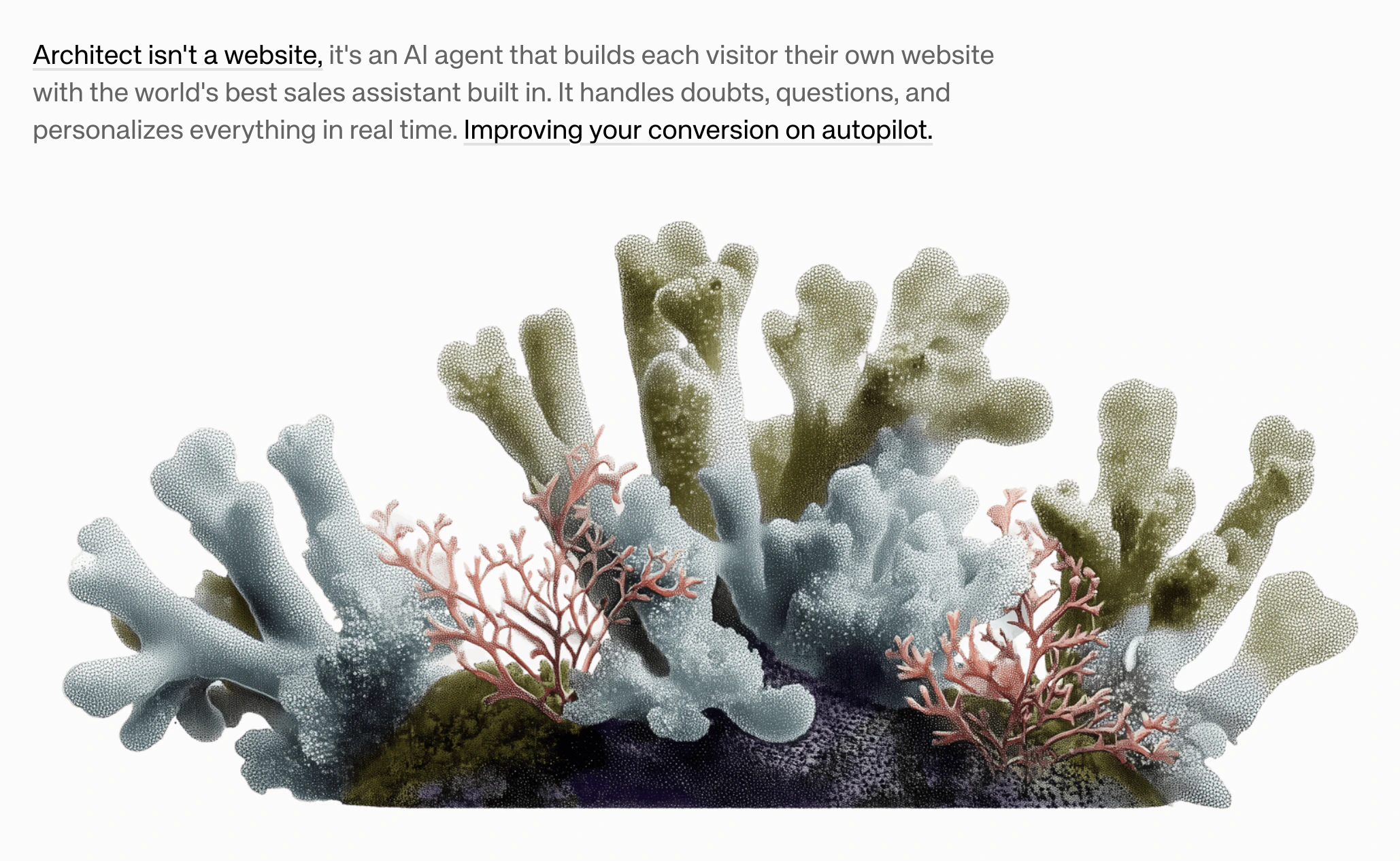
ImageContainer slice showing body text above a responsive image
Best Used For: Displaying responsive images with optional alt text for accessibility. Supports size variants:
  • small - 60% width, centered
  • medium - 100% width (default)
  • large - 60vw (breaks out of container)
  • full - 100vw (full bleed)

VideoContainer
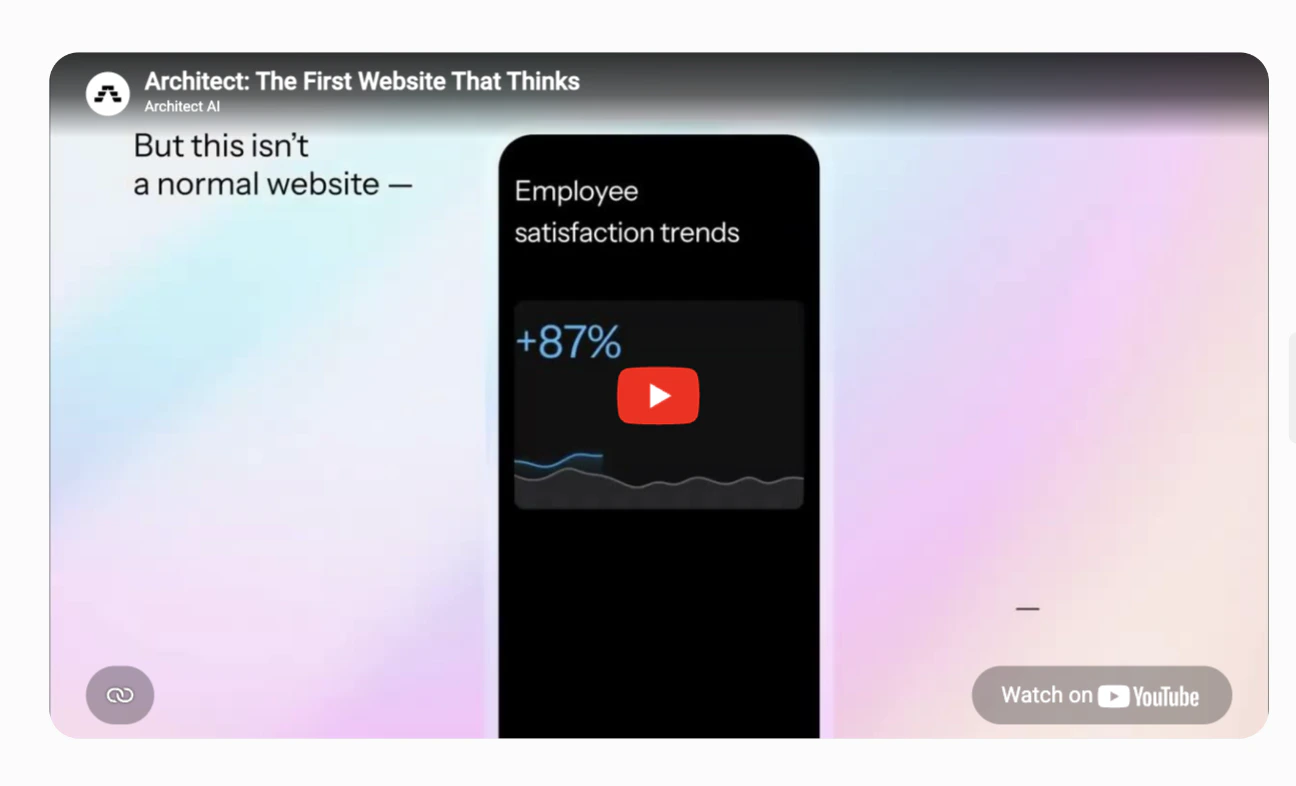
VideoContainer slice showing an embedded YouTube video with a play button overlay
Best Used For: Embedding video content directly into a page. Video is one of the highest-converting assets for landing pages, making this slice ideal for product demos, explainer videos, or customer story recordings.

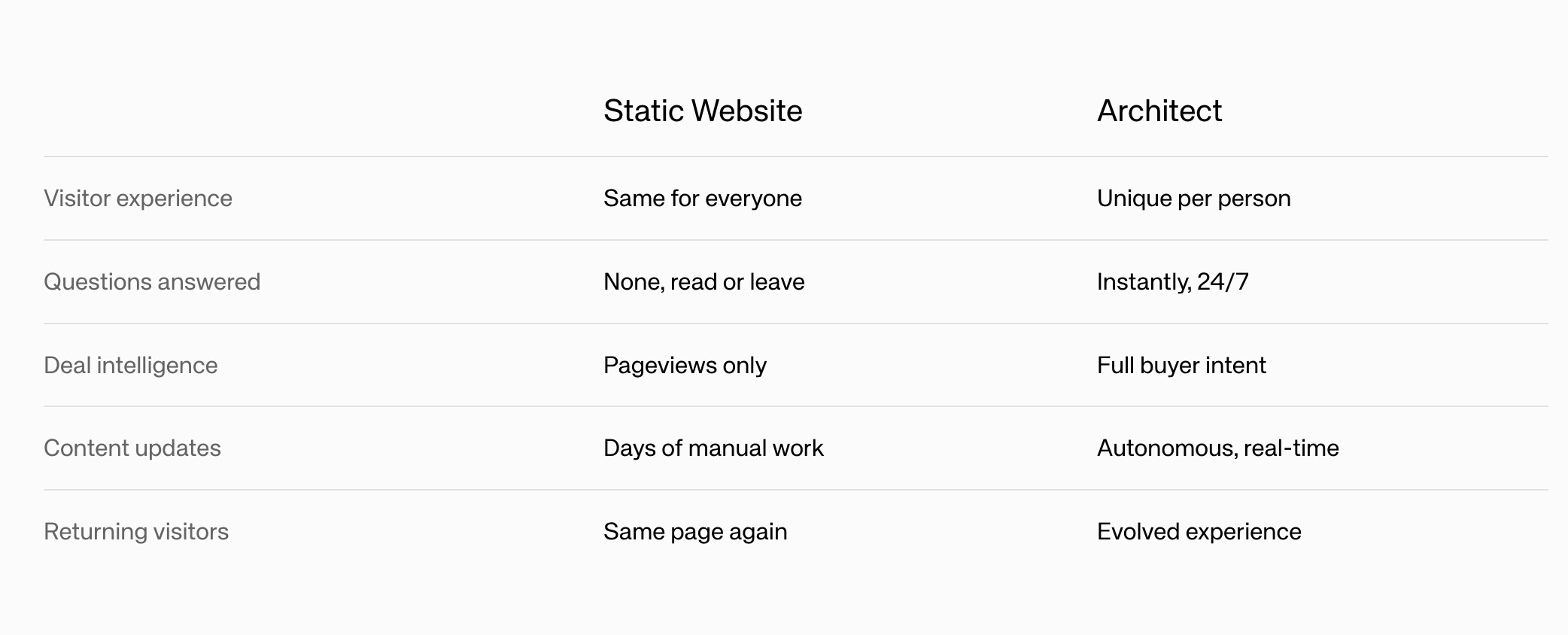
Table

Table slice showing a comparison between Static Website and Architect across five categories
Best Used For: Organizing and displaying structured, tabular data with column headers and rows. Ideal for pricing comparisons, feature matrices, specifications, or any two-dimensional data that benefits from a grid layout with striped rows and hover effects. You can optionally highlight a specific column to draw attention to it (e.g., highlighting your product in a comparison table). Set highlightedColumnIndex to the 0-based index of the column you want to emphasize, or leave it unset for no highlight.

FeatureCards
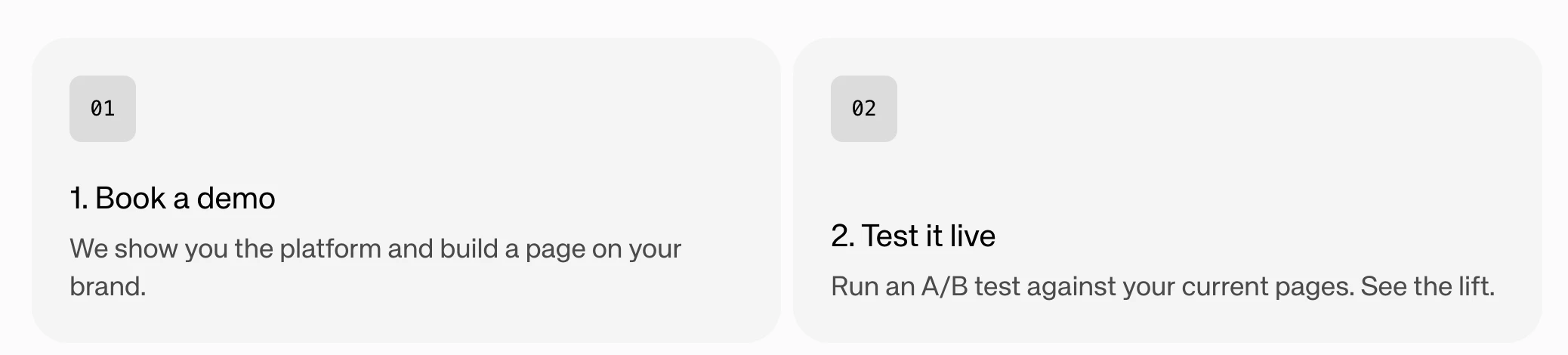
FeatureCards slice showing two numbered cards with headlines and descriptions
Best Used For: Presenting 2-6 features, benefits, or value propositions in a scannable card grid layout (up to 3 per row). Each card contains:
  • Headline (2-5 words)
  • Content description (1-2 sentences)
  • Optional icon
  • Optional feature image

With images

FeatureCards also support an image mode where each card includes a prominent visual alongside the text content.
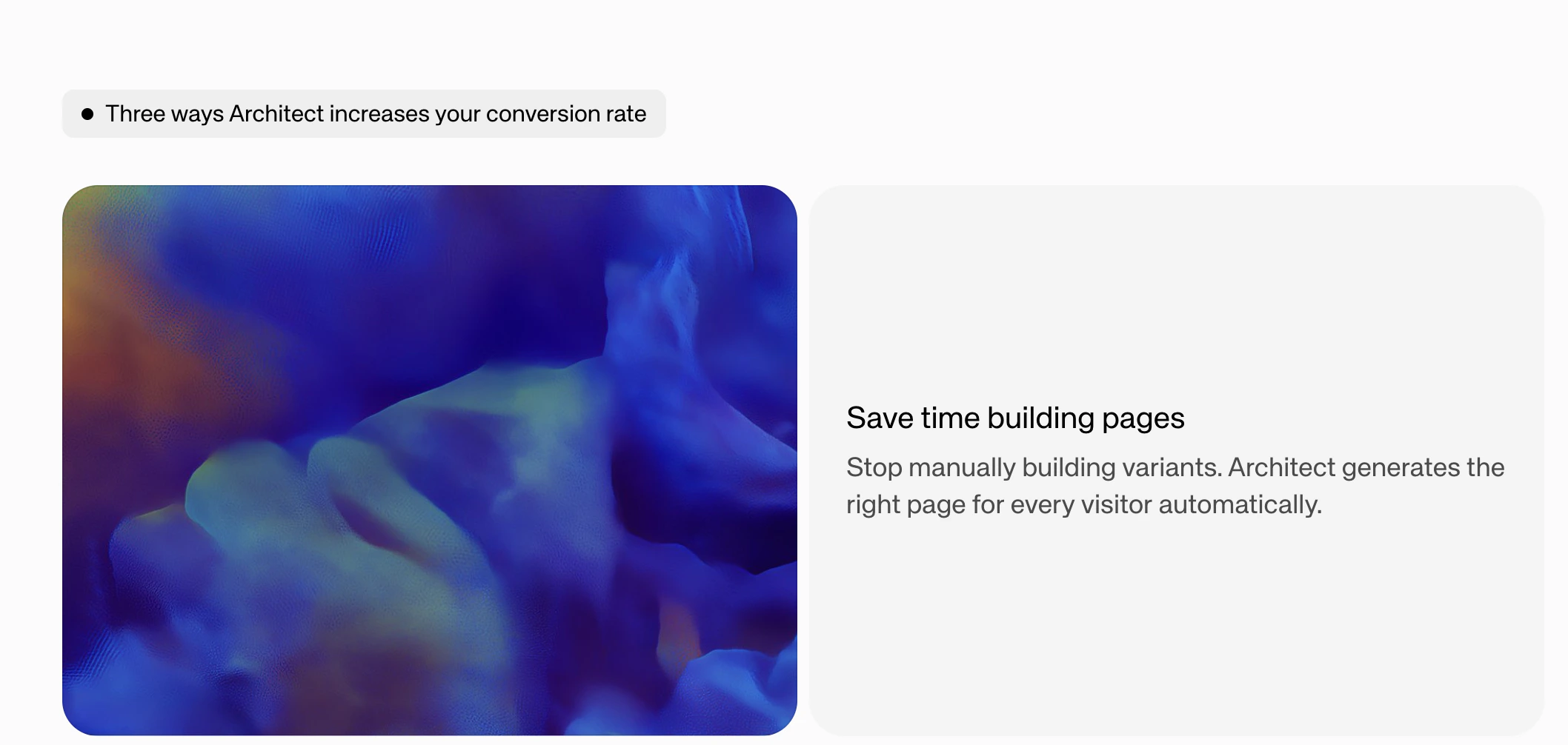
FeatureCards slice with a large image alongside the card text content
Supports imageMode: fill (photos) or contain (diagrams/logos).

Frame

Frame slice showing collapsible expandable sections Best Used For: Creating collapsible, expandable sections that organize related content under a header title. Frames can contain child components and are ideal for:
  • FAQ-style expandable sections
  • Progressive disclosure of detailed information
  • Grouping related content with show/hide functionality

FrameList
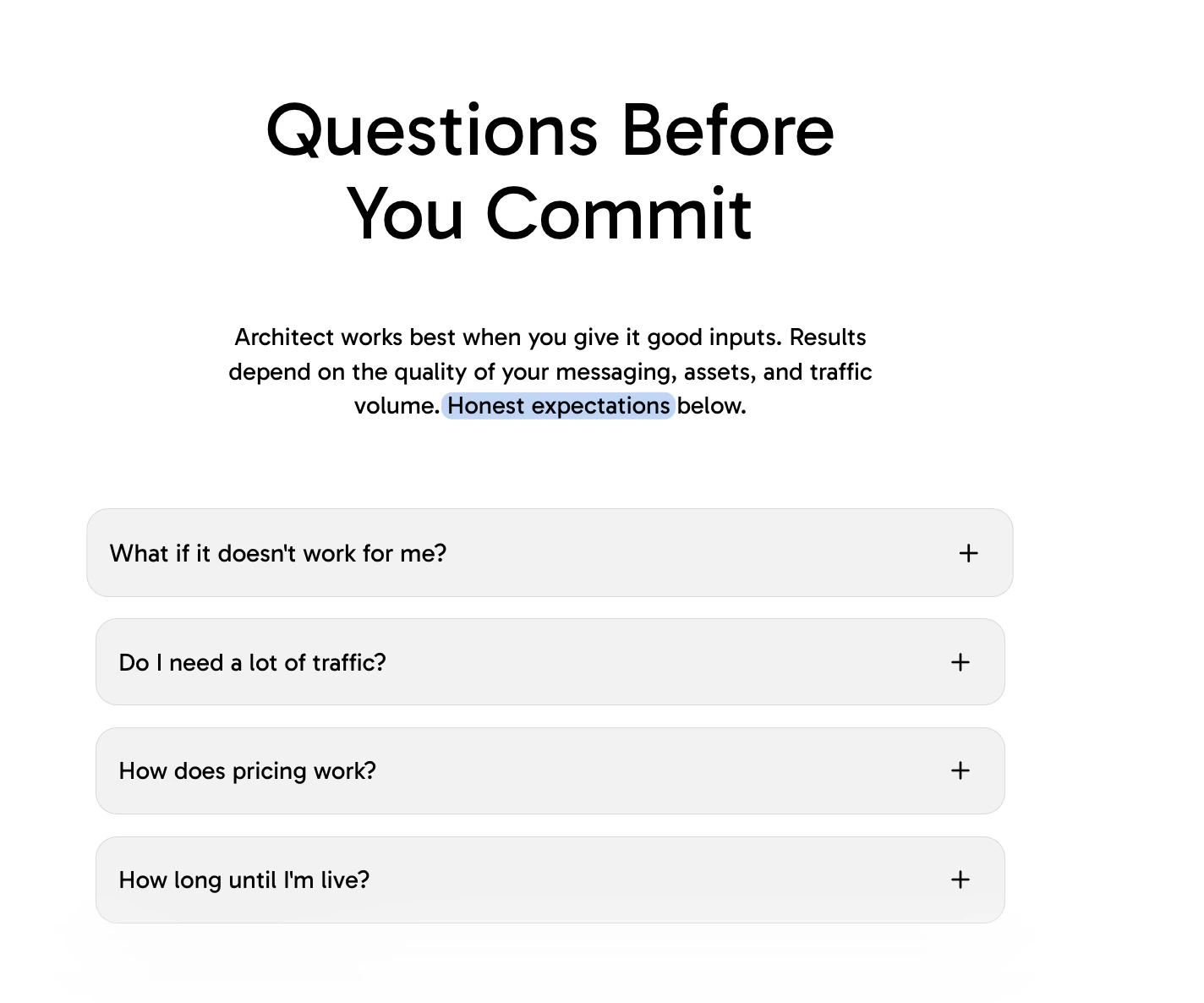
FrameList slice showing grouped Frame components Best Used For: Grouping multiple Frame components with tighter spacing. Use when frames should appear closer together as a cohesive unit (e.g., a series of FAQ items or related expandable sections).

TestimonialCarousel

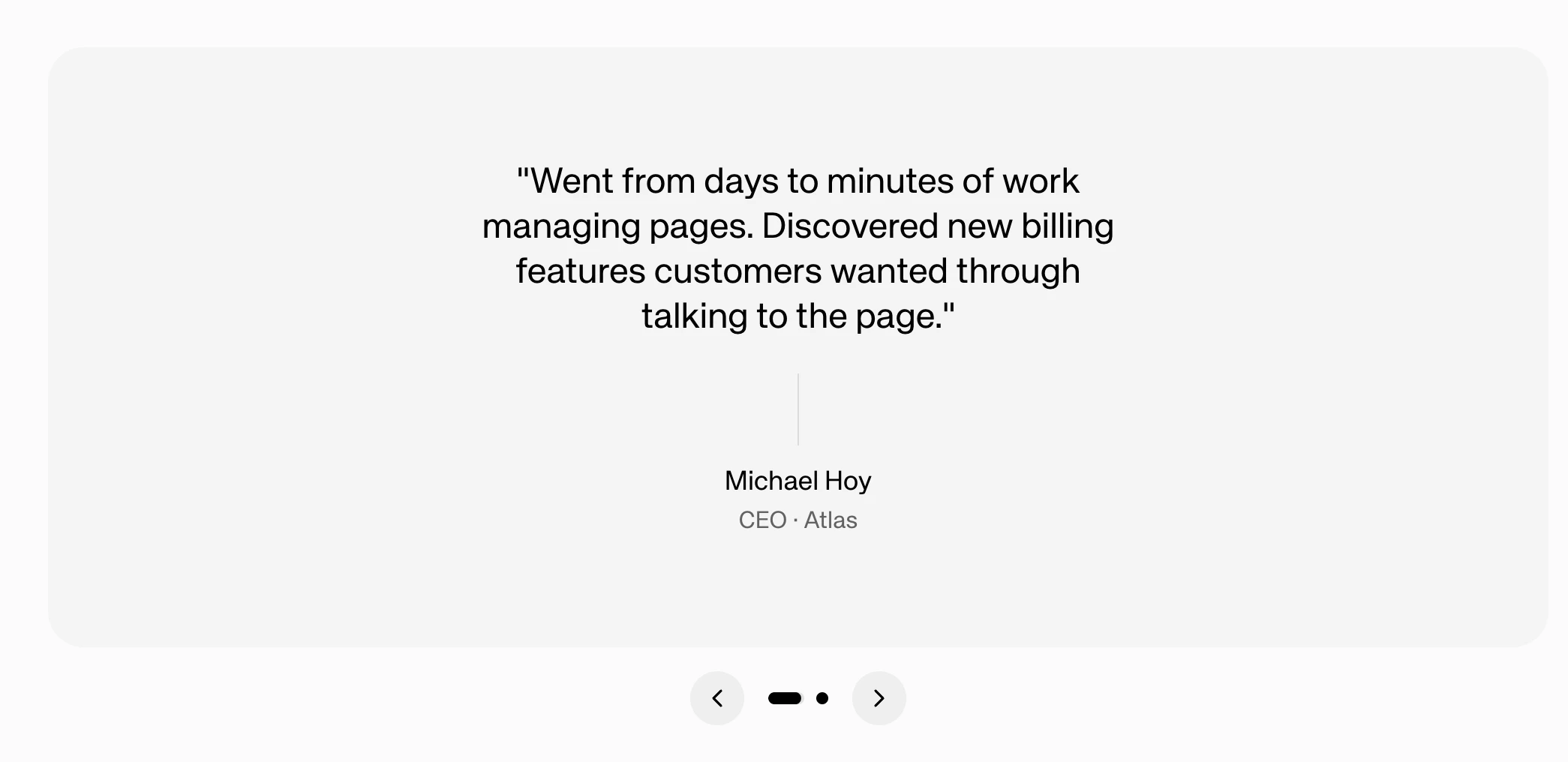
TestimonialCarousel slice showing a customer quote with author name, title, and navigation controls
Best Used For: Adding social proof through rotating customer testimonials displayed as a horizontal carousel with quote styling. Each testimonial includes:
  • Quote text (15-40 words, customer’s voice)
  • Author name
  • Optional title/role
  • Optional company name
Includes navigation arrows and dots for browsing multiple testimonials.

CallToActionCard

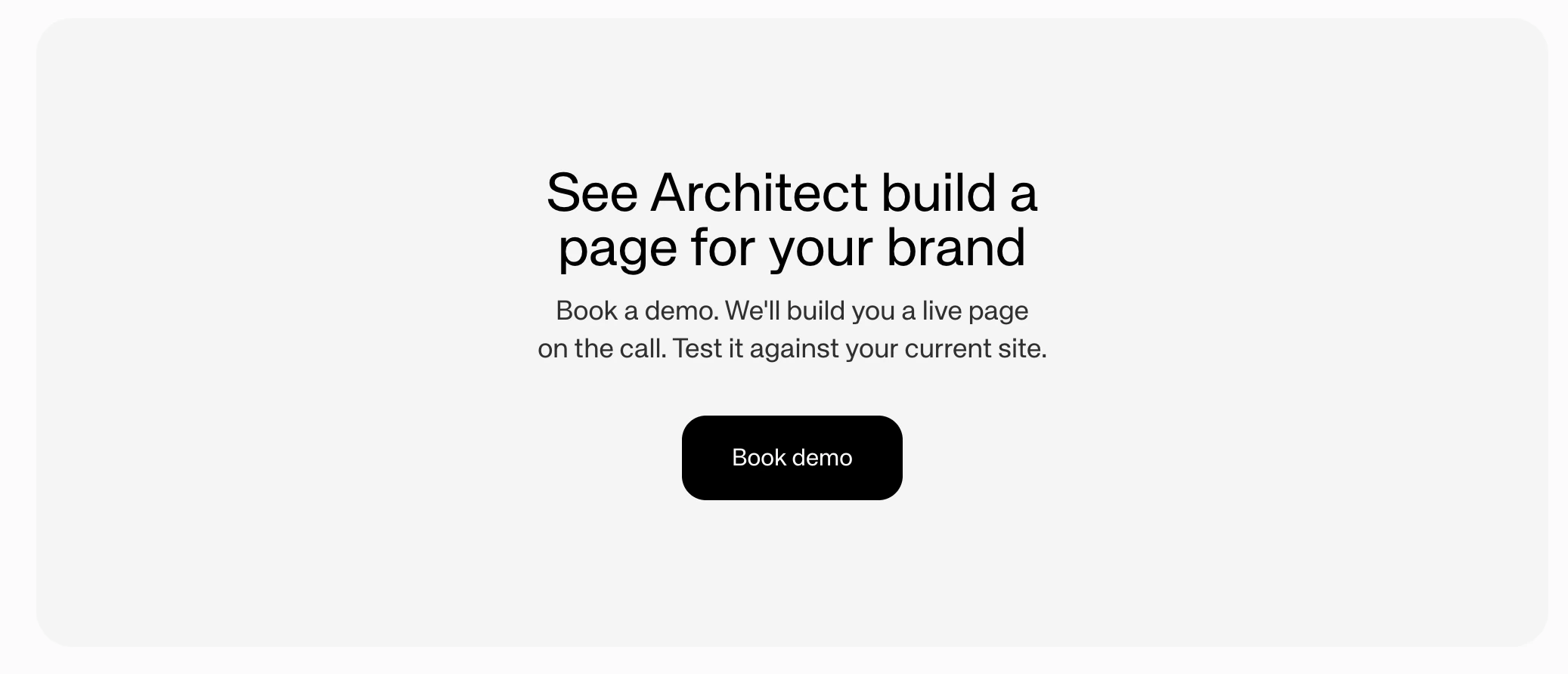
CallToActionCard slice showing a headline, description, and Book demo button
Best Used For: Creating a prominent conversion point with a bold headline (5-10 words), supporting description (1-2 sentences), and an action button. Actions can be:
  • open-url - Navigate to a URL
  • form - Open an email capture form modal

Threads
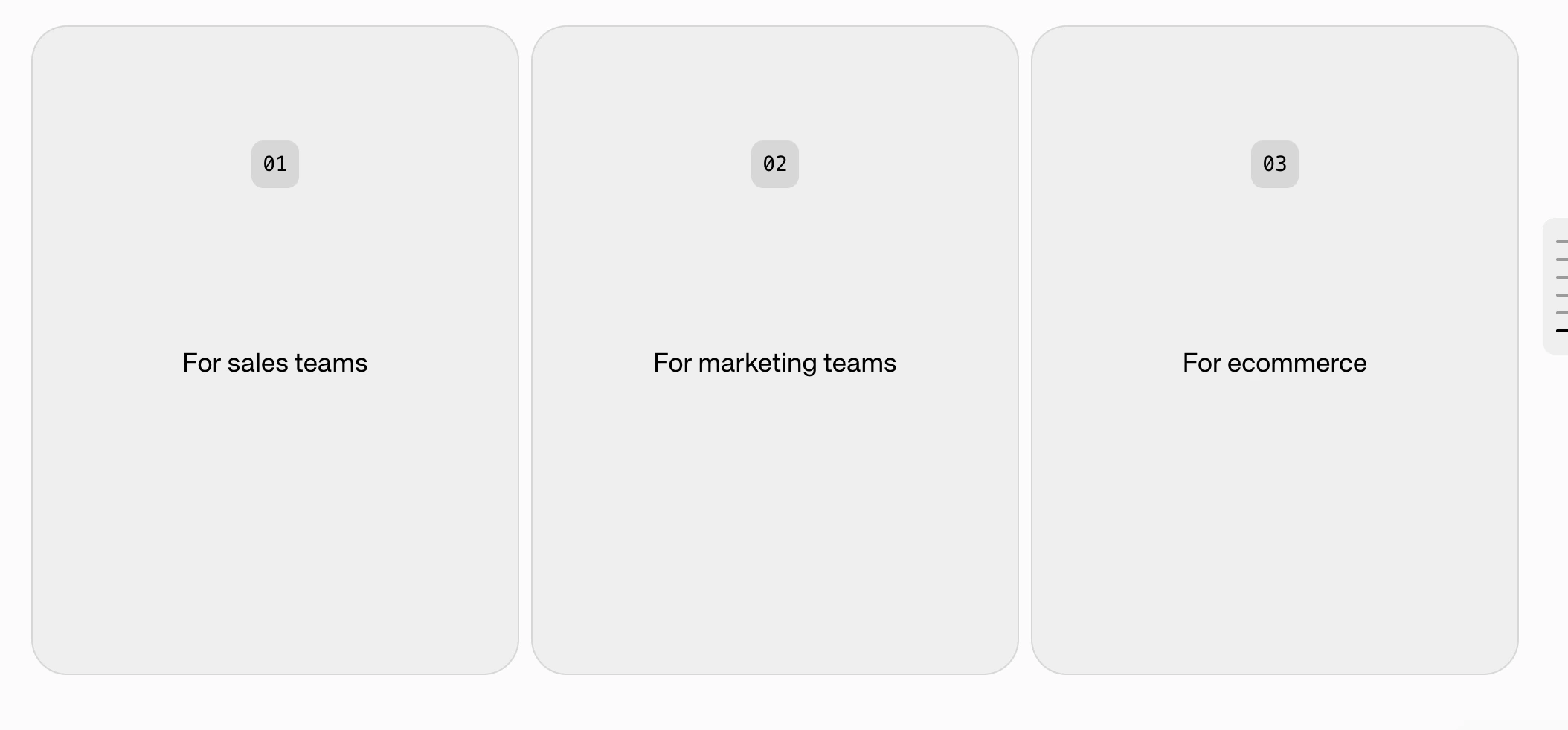
Threads slice showing three selectable cards for sales teams, marketing teams, and ecommerce
Best Used For: Enabling conversation continuation and user interaction.
  • Presents a question with 2-4 selectable options
  • Each option has a label and action
  • Qualifies users by gathering information (company size, needs, budget)
  • Dynamically routes users to appropriate content paths

StatsCards
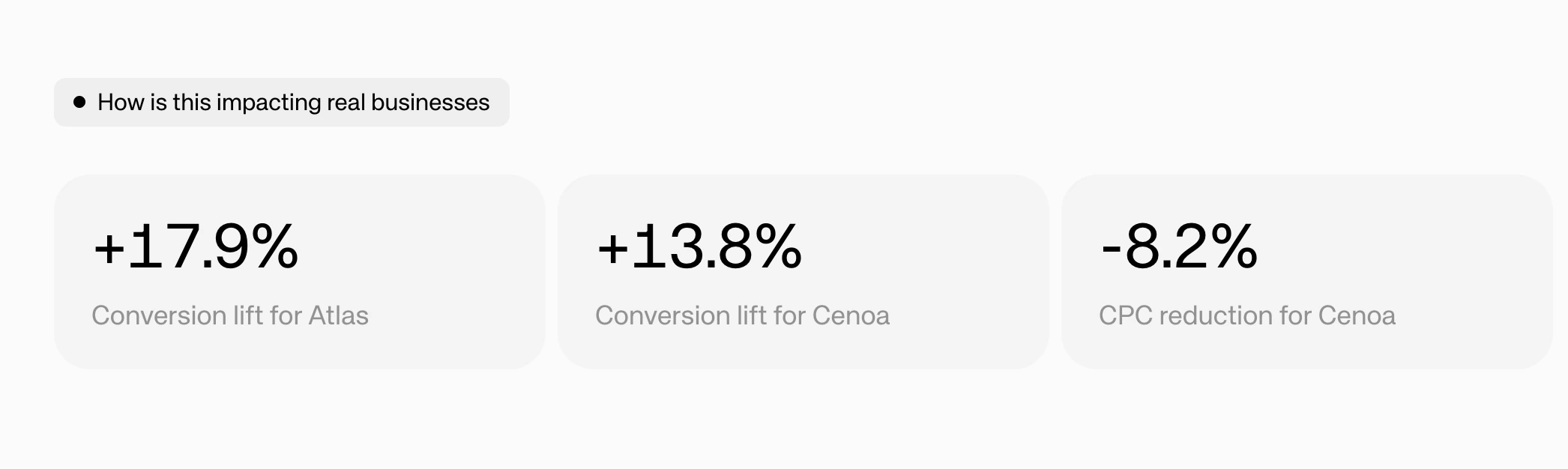
StatsCards slice showing three statistics: conversion lift percentages and CPC reduction
Best Used For: Displaying 2-4 highlighted statistics as large, prominent numbers with labels. Builds credibility by making abstract benefits tangible (e.g., “+17.9%” Conversion lift, “99.9%” Uptime, “$2M” Revenue Generated). Values can include formatting characters.

LogoMarquee

LogoMarquee slice showing a scrolling banner of partner logos Best Used For: Building trust and credibility through a continuously scrolling banner of customer/partner logos (similar to “Trusted by…” sections). Logos are displayed with a grayscale filter for visual consistency. Supports speed control and per-item duration for fine-tuning.

CustomComponent

Best Used For: Rendering custom or dynamic components that don’t fit into the standard slice types. Use this for specialized content that requires unique layouts or behavior beyond what the built-in slices provide.
Best Used For: Adding a page footer with branding, links, or closing content. This is a page-level component that appears at the bottom of the page.
Footer links showing Company and Socials columns with navigation links

Action Widgets

Action widgets are page-level, static components that are set on the page to show trust. We recommend setting these up.
Footer action widgets showing a logo marquee and watch demo video button

Left Hand Side CTA

This is the main CTA that follows the user on the page. It is set at the page level as well.
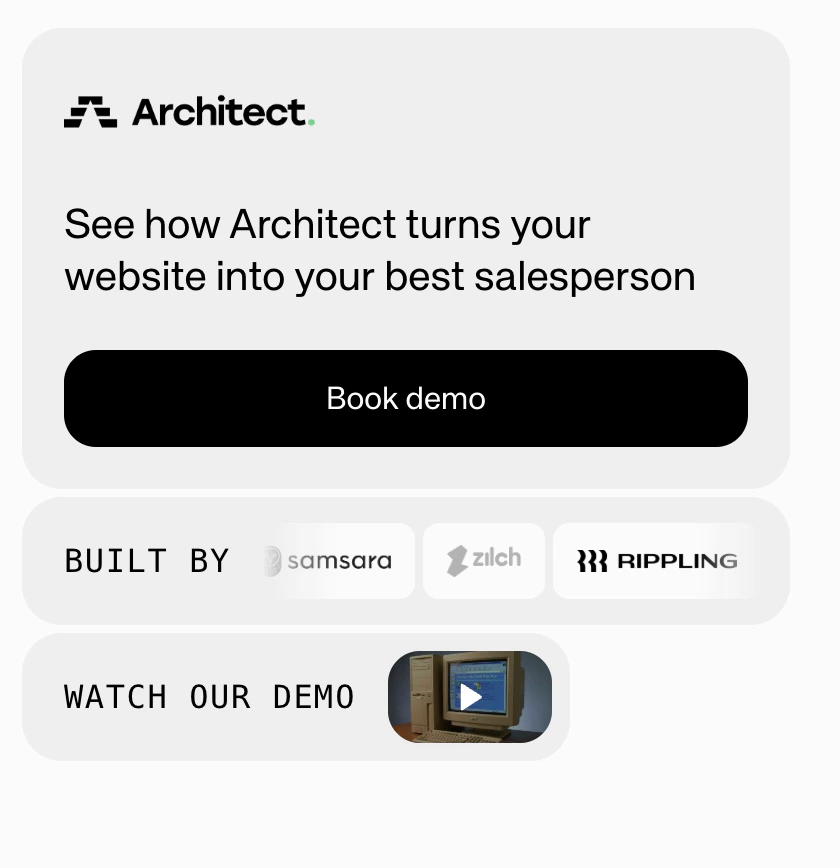
Footer showing a CTA card with logo, action button, logo marquee, and video widget

Question Bar

The question bar is a constant bar that sits at the bottom of the page where visitors can ask questions. When a user asks a question, more components will automatically generate at the end of the page.

Footer question bar showing a text input asking What would you like to see?